Attribution is a valuable part of your user’s lifecycle story. To better understand how your users are finding you and how attribution works in Localytics, see Attribution.
There are three different methods for collecting attribution data:
Basic requirements
The basic requirements for setting up attribution vary based on the operating system that you’re working with.
Android requirements
You’ll need to be SDK version 3.3 or higher in order to use attribution.
For attribution to work, you’ll need to make sure you’ve implemented Localytics properly—which means that your development team has followed our setup guide. You’ll want to make sure they’ve set up Modify AndroidManifest.xml in particular. For more information, see Getting Started and Modify AdroidManifest.xml in the Android SDK documentation.
You’ll also need to have access to your app’s Bundle ID.
Android setup
As long as everything is set up properly, you'll next need your app’s Bundle ID, which appears at the end of your app’s URL in the Google Play store. It’s usually something like com.companyname.appname. Make sure it’s only the Bundle ID, not the whole URL (that is, https://play.google.com/store/apps/details?id=com.companyname.appname&hl=en).
To set up your app's Bundle ID:
- Go to Marketing in the left pane and select Attribution.
- Select Attribution Settings.
-
In the App Store Setup section, enter the app Bundle ID in the Android Package field, and then select the Enable Android referrer attribution check box.
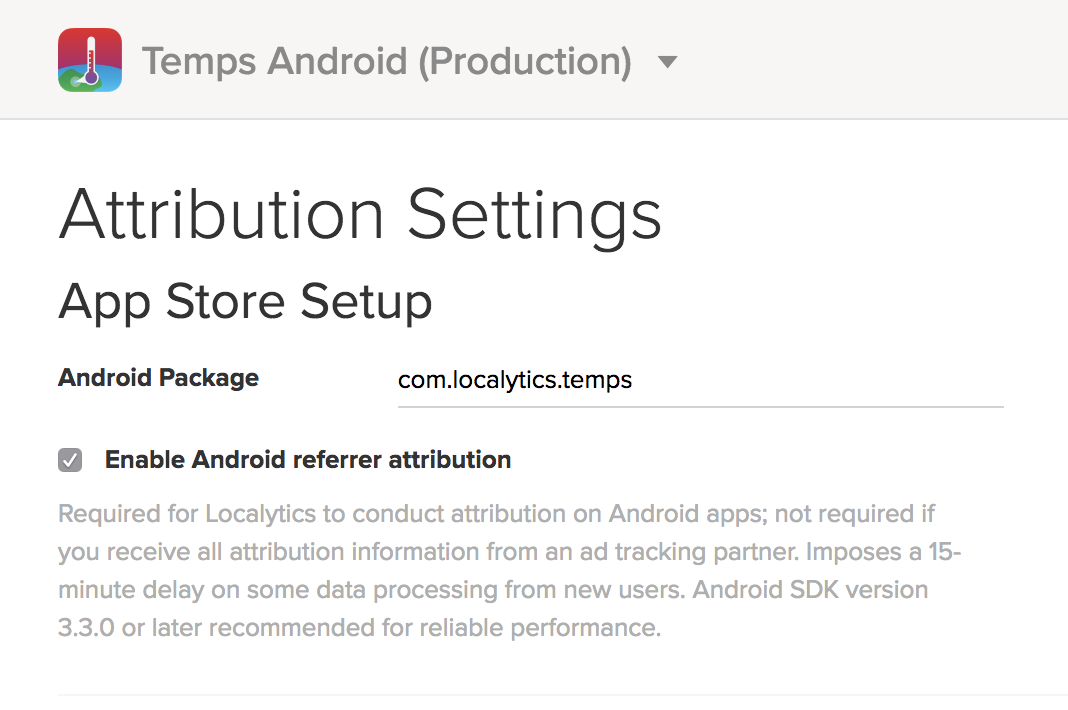
- When you are done, select Save.
Tip: We also highly recommend you test to make sure your app is set up properly.
That’s it for Android setup. Depending on the type of tracking you’re setting up, you’ll want to follow different instructions for each:
iOS requirements
Tip: While there isn’t a minimum requirement for SDK version for iOS attribution setup, it’s always good to keep your SDK version up-to-date. For more information, see "iOS" in SDK changelog in the Developer documentation.
Similar to Android, you’ll want to make sure that your development team has followed our iOS SDK setup guide in the Developer documentation. The important step is adding AdSupport.framework to the app. This is included by default if your app uses standard build tools. For more information, see Tracking user acquisition source in the iOS SDK documentation.
You’ll also want to have your iTunes Package ID at the ready.
iOS setup
As long as everything is set up properly, you’ll next want to get your iTunes Package ID. This is the number iTunes uses to recognize your app in the App Store. Make sure you’re only grabbing the number (that is, 895096435)—not the whole URL (https://itunes.apple.com/us/app/temps-local-weather-forecast/id895096435).
To set up your app's iTunes Package ID:
- Go to Marketing in the left pane and select Attribution.
- Select Attribution Settings.
-
In the App Store Setup section, enter the iTunes Package ID in the iTunes ID field.
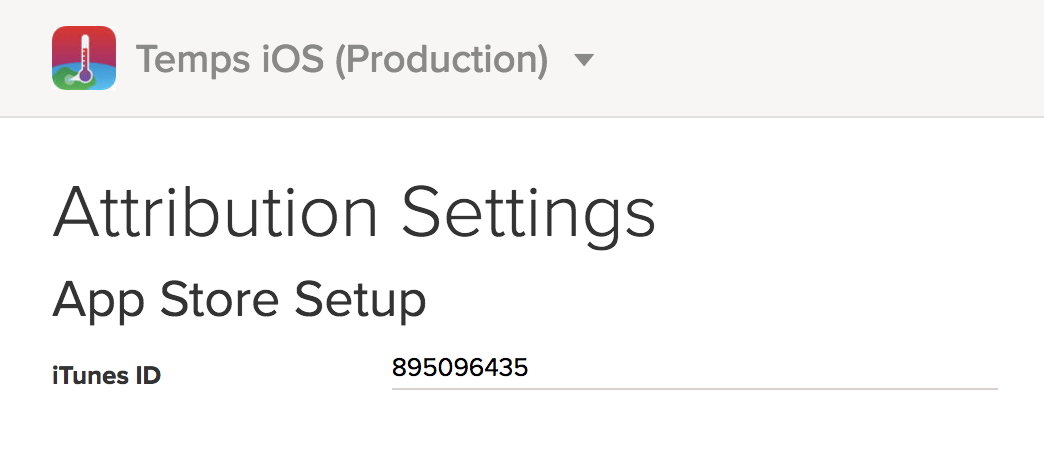
Depending on the type of tracking you’re setting up, you’ll want to follow different instructions for each: