The Profiles dashboard summarizes user profile data collected by Localytics.
To work with the Profiles dashboard:
-
Go to Marketing in the left pane and select Profiles
The Profiles report contains a table listing all of the profile attributes.
-
For more detail, select the profile attribute name.
From the Profiles dashboard, you can do the following:
Updating profiles
There are several ways to update profile information:
- Localytics SDK (for more information, see "User profiles" in the iOS SDK or the Android SDK documentation)
- Profile API (for more information, see Profile API in the Developer documentation)
- Profile Imports API (for more information, see Profile Imports in the Developer documentation)
- Importing profile data
The Localytics SDK may be configured to capture profile information while your app is in use. For example, each time a session starts it will record the App Version, Timezone, and Language from the device. Additionally, it may collect custom profiles such as Last Purchase Date or Last Article Read.
Importing profile data
Sometimes, it may be helpful to import information about users from other systems as well, so those data may be used to better target and engage users. An easy way to do so is to upload a CSV (comma-separated values) file.
Preparing the CSV file
The CSV file must contain the customer ID in the left-most column and the information associated with each user in the additional columns. Each additional column header represents the profile, for example, Favorite Team, and the fields contains the values associated with each customer ID.
The following table presents a sample CSV file:
| customer ID | Gender | Birthday | Favorite Team |
Age |
|---|---|---|---|---|
| 100 | male | 1/13/86 | Bruins |
34 |
| 201 | female | 6/11/85 | Predators |
35 |
| 322 | female | 11/23/99 | Capitals |
21 |
| 410 | male | 8/16/92 | Maple Leafs |
28 |
Uploading a CSV file of profiles
To upload a CSV file of profiles:
-
Go to Marketing in the left pane and select Profiles.
The Profiles report contains a table listing all of the profile attributes.
-
In the upper-right corner of the table, select Actions and then select Upload CSV.
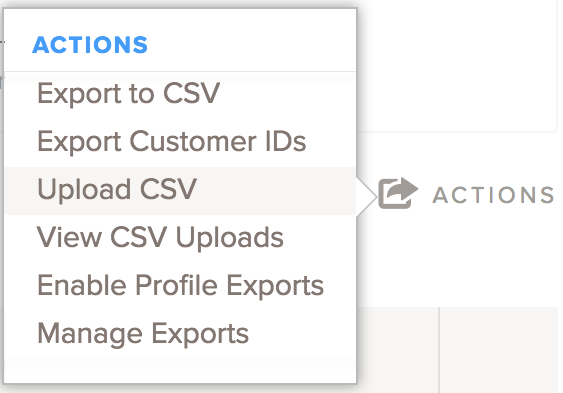
- Select Upload to your Org, for organization-level data, or Upload to this App, for app-level data. For more information, see Profile attribute scope.
- Select Choose a file to download, navigate to the CSV file location, and then select Open.
- Select Preview.
- If you are satisfied with the file contents, select Upload.
Uploading rules
You should understand a few specifics when preparing profile data for upload:
| Rule | Description |
|---|---|
| Data organization |
The first row of your CSV must include profile attribute names that either already exist or that you wish to create, except for the left-most column, which must have the header name |
| Special attributes (for example, $email) |
If you are uploading special profile attributes ( |
| Data types | Profile attributes must be dates, integers, or text strings. Do not send arrays. For more information, see Data types and limits in the Profile API documentation. |
| Date format | Dates must be formatted as YYYY-MM-DD. |
| Quotations | You may send text strings either in quotes or without quotes. Be sure to close your quotes. |
| Deleting data |
Profile attributes cannot be deleted once they're uploaded. If you want to delete a value, replace the value with a blank or null in your CSV file and upload it again. You can also use the Profiles API to edit or delete profiles. For more information, see Deleting profiles in the Profile API documentation. |
| User permissions |
To upload profile data via CSV, you need to have Org Admin, Org Creator, App Owner, or App Marketer permissions. |
| File size | Your CSV file cannot be more than 100MB. |
Similarly, you may programmatically upload information from other systems via Localytics APIs, which is great for data being captured outside of Localytics (for example, point-of-sale data) that are updated regularly.
The Profile Import API is used for bulk uploads, that is, a list of multiple users, as a .csv or .json file. Conversely, the Profile API may be used to update information about an individual user. (For more information, see Profile Imports and Profile API in the Developer documentation.)